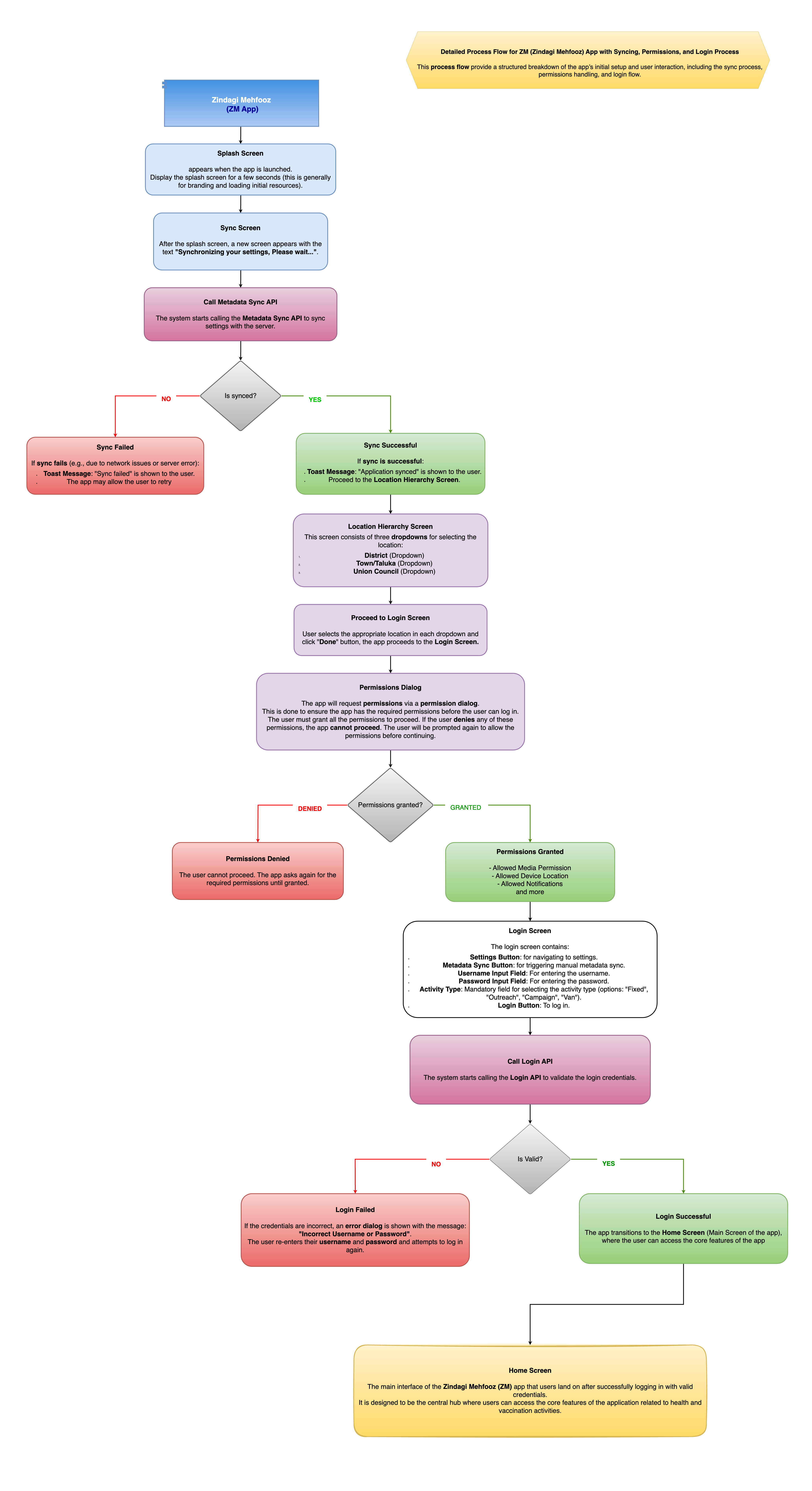
Syncing & Login Module
Overview
The Syncing & Login Module in the Zindagi Mehfooz (ZM) App plays a vital role in ensuring that the app’s settings, data, and user access are properly synchronized and managed. This module is designed to provide smooth access to the app's functionalities and ensure that all information is up-to-date across devices, even in areas with limited connectivity. The module is responsible for initial syncing of the Children & Women and user credentials validation, which is crucial for both offline and online operations.
The Syncing & Login Module includes the following key components
- Syncing Settings: Synchronizing the app’s metadata to ensure that the app is aligned with the latest child and woman data models, locations and user-specific details.
- User Login: Verifying user credentials (username and password) and ensuring that only authorized users can access the app.
- Permission Requests: Ensuring that necessary permissions, such as access to location, notifications, and media, are granted before proceeding with the app's functionalities.
1. Syncing Process
The Syncing process is essential to ensure that the Zindagi Mehfooz app is always using the most up-to-date metadata. Upon opening the app, it first checks for internet connectivity and then proceeds to sync the necessary data from the server.
Syncing Process Flow
-
Syncing Initialization: When the app is opened, it starts by checking the internet connection. If a connection is available, the syncing process begins. The user sees a message like "Synchronizing your settings, please wait...".
-
Metadata Sync API Call: The app calls an API to fetch the metadata, which includes zero dose registry data, children data, women data and other essential data that define how the app should function. This ensures that the latest configurations are applied to the app.
-
Sync Success or Failure:
-
Success: If the metadata sync is successful, the app displays a message "Application synced" and moves to the location hierarchy screen.
-
Failure: If the sync fails, the app shows a "Sync failed" message and gives the user an option to retry or continue without syncing.
-
-
Proceed to Location Hierarchy: After successful syncing, the user is directed to select their location hierarchy (District, Town/Taluka, Union Council) through a series of dropdown menus. Once selected, the user clicks the "Done" button.
2. Login Process
After syncing, the user is required to log in to the app by providing their credentials. The Login Process is crucial for authenticating users and granting access to the app’s features. If the login credentials are invalid, the system will notify the user and prevent access to the application.
Login Process Flow
-
Permission Request: The app requests for necessary permissions (e.g., access to device location, notifications, and media). The app will not proceed unless these permissions are granted.
-
Access Granted: After the permissions are granted, the user gains access to the app.
-
Login Screen: The login screen is displayed with fields for Username and Password. The user must also select the type of activity (Fixed, Outreach, Campaign, or Van) they will be performing. The login screen also includes Settings and Metadata Sync buttons at the top.
-
User Input: The user enters their Username and Password and selects the activity type. After that, the user presses the Login button to submit the credentials.
-
Credentials Validation:
-
Success: If the credentials are valid, the system logs the user in and navigates to the Home Screen of the app.
-
Failure: If the credentials are incorrect, an error dialog appears with the message "Incorrect Username or Password". The user can re-enter their credentials.
-
User is directed to the Home Screen.
Flowchart